0
out of
1
found this helpful.
Grade and return feedback to students聽
1. Select the聽础蝉蝉颈驳苍尘别苍迟蝉听tab, then select your quiz.
By default, your quiz聽will appear聽in聽order of due date and聽show聽how many students have turned it in.
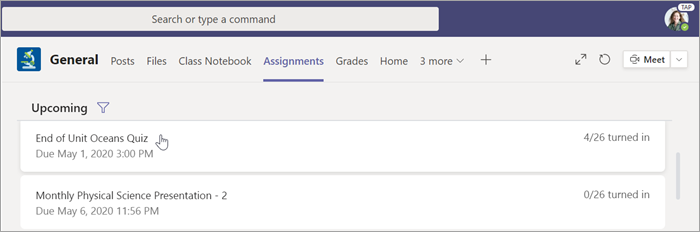
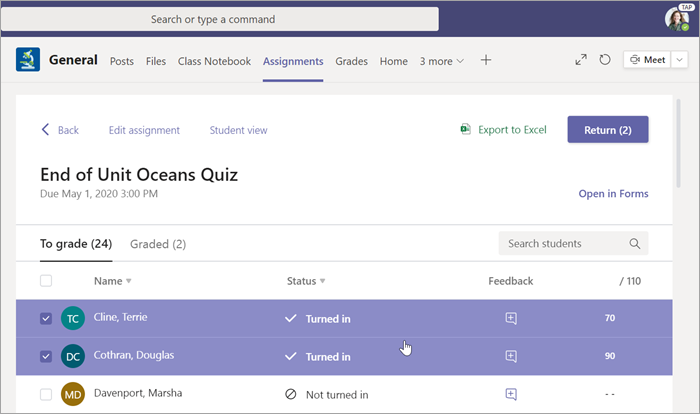
2. In the聽To return聽tab, you can see all students assigned the quiz and the status of their work:聽Not turned in,听Viewed, and聽Turned in.
Select Turned in next to a student's name to review

Tip:聽You can open multiple quizzes to review and grade at a time. In the聽To return聽tab, select the聽厂迟补迟耻蝉听dropdown to sort students by assignment聽status. Select the checkboxes for students who have turned in work, then select the highlighted group to open.
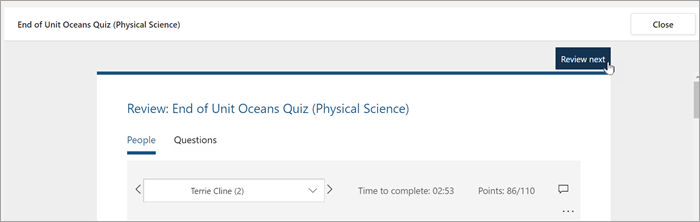
3.聽The assignment聽grading view聽will open to a student's quiz results. As you review,听you can:聽
厂别濒别肠迟听Review next聽to move from question to question as you review聽a student's quiz.
See聽auto-graded multiple-choice responses. Forms will already have calculated points, but you can edit the score to award partial or extra credit.
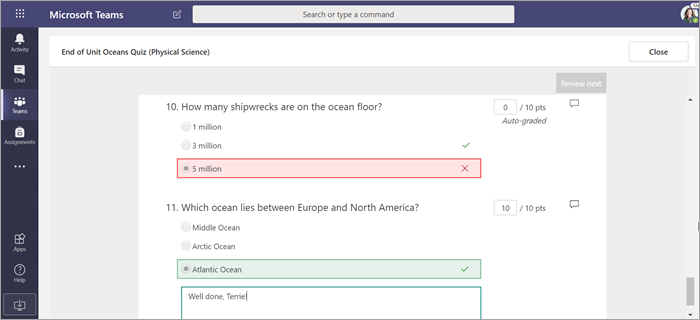
Give feedback听听听 聽on a single response.聽
Review short-answer and essay responses and add points

厂别濒别肠迟听聽聽聽聽at the top of the quiz to provide comments for the whole quiz.聽
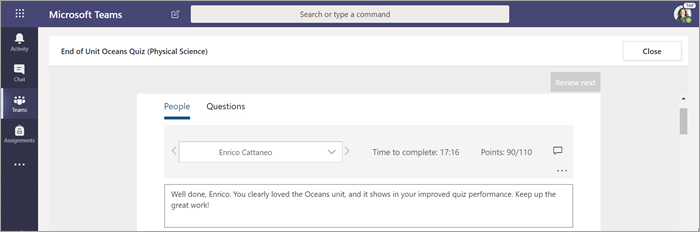
When working with multiple turned-in quizzes at a time, use the dropdown menu in the聽笔别辞辫濒别听tab to聽move between students.
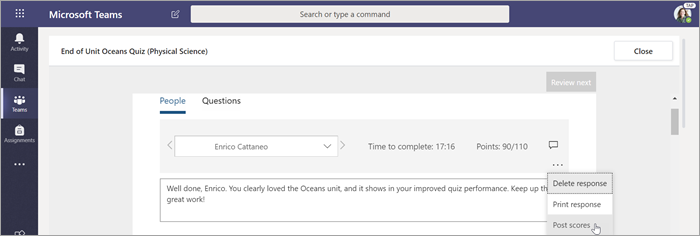
4.聽To post a student's score and return their graded quiz聽to them,听select聽More options聽 聽聽>聽Post scores.
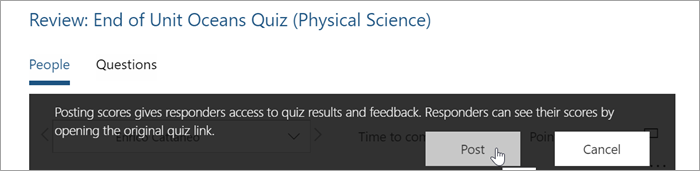
厂别濒别肠迟听笔辞蝉迟听to submit final feedback and points.
5.Return to and refresh the assigned聽quiz. Quizzes you've graded and returned will show in the聽Returned聽tab.