0
out of
29
found this helpful.
Each of your class teams has a Grades tab where you can view assignments at a glance as well as track how individual students in your class are progressing. Use the Grades tab to get an overview of your class, access data quickly, open, and return student work.
Navigate the Grades tab
To open the Grades tab, navigate to the听骋别苍别谤补濒听channel of your desired class team and select听Grades.

You'll see that your assignments appear in rows听and your students in a column. Assignments are ordered by due date, with the nearest date at the beginning. Continue scrolling to continue viewing assignments.

Viewing an assignment
Select an assignment's square to open and view it.

Export all grades in this class as a .csv file by selecting听Export to Excel.
听
Status of student work
When your students view and turn in their work, you'll see a status in the cell associated with their name and the assignment.
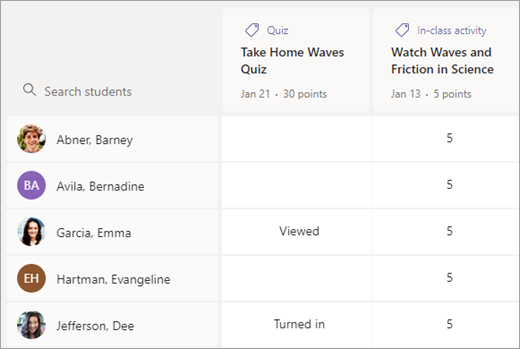
Viewed The student has opened and viewed the assignment听
Turned in The student has turned in the assignment and work is ready to grade听
Returned or points When you've graded student work, the points assigned will show. You'll see Returned if the assignment doesn't have points听
Blank No action has been taken on the assignment yet
You can also select听More options听 听in the cell to open the student's work, or select听Return听to quickly return graded work to them.

View individual student progress听
Select any student's name to view a detailed list of their grades in your class so far.听
Tip: Use the search bar to quickly find specific students
Each student's assignments are listed with the nearest due date at the top by default. Here you can view the assignment's title, its status, and how many points have been awarded so far.

Sort assignments by date or title by using the arrows.
To quickly open student work and grade it, select the status next to the assignment.
听
Export all of one student's grades in this class as a .csv file by selecting听Export to Excel.