After you create your quiz, adjust its settings, and share it with others, it鈥檚 time to view the results.
View response and summary information for your quiz
Review answers for each question
Post Scores
Analyze your quiz results in Excel
Share results with others
In Microsoft Forms, open the quiz for which you want to review the results, and then click the听搁别蝉辫辞苍蝉别蝉听tab.

Across the top, you鈥檒l see real-time summary information about your quiz, such as number of responses, average score, and quiz's current status.
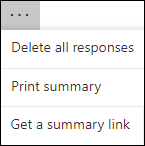
You can click听More options听 听to delete all responses, print a summary, or get a summary link to share with others.
颁濒颈肠办听Review Answers听to provide points and feedback. You can do this either Per Person or Per Question
Per Person:听On the听笔别辞辫濒别听tab, you can see individual details for each student, such as time it took to complete your quiz, number of points earned, and the option(s) your student selected.
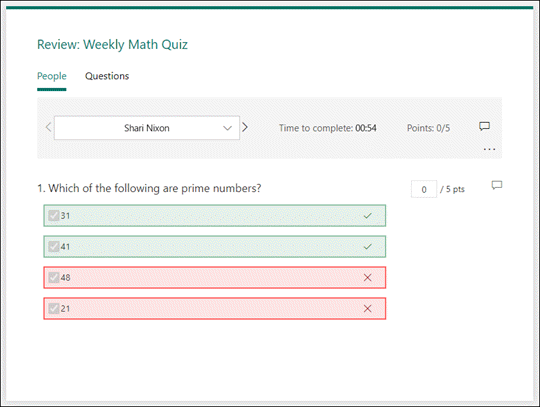
In this view, you can grade all questions for one student, then do the same for subsequent students. Click the arrow next to a student's name to jump to the results of another student. You can also click the left and right arrows to toggle through the result details of the other students.
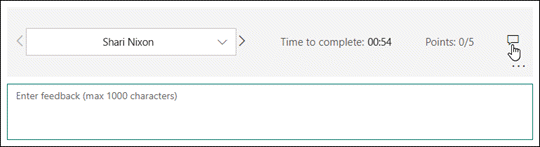
To provide general feedback for a student, click the feedback icon听 听and type in the text box.
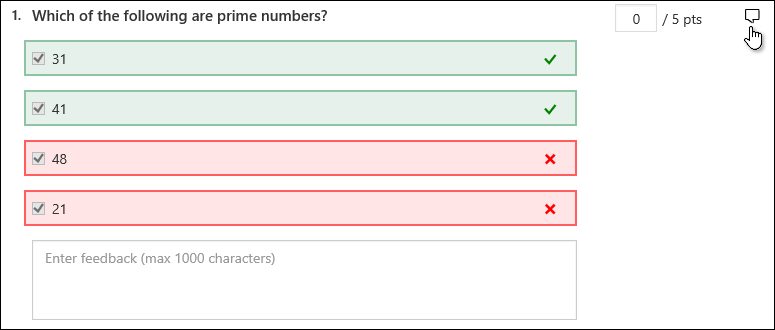
To provide feedback for a particular question, click the feedback icon听听to the right of points, and then type in the text box.
You can also click听More options听听and choose whether to听Delete response,听Print response, or听Post scores听for a particular individual.
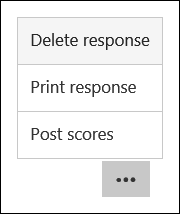
Note: Deleting a response cannot be undone
Per Question:听On the听蚕耻别蝉迟颈辞苍蝉听tab, you can see each question and number of responses for each answer.
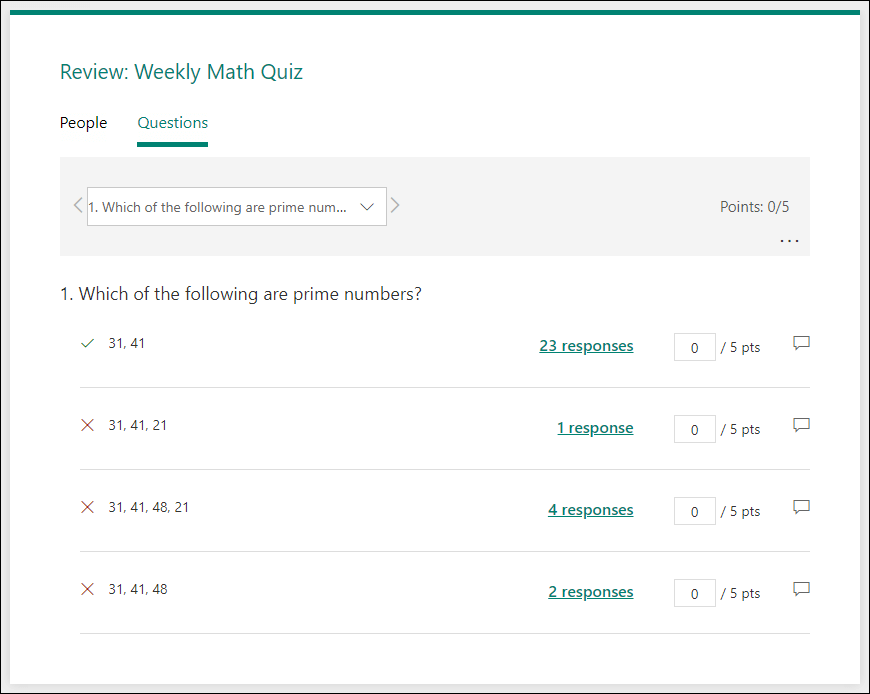
In this view, you can grade one听question across all students by assigning points per answer. Click on the link for each answer's responses to get a snapshot of which students selected that particular answer. Click the feedback icon听听to the right of each answer's points to provide bulk feedback to all students who selected that answer.
Click the left and right arrows to toggle through the details of other questions.
When you're ready to share your feedback and points to students, click听Post scores听in the听Responses听迟补产.
For each student, you can see the status of their quiz and number of points earned. If you want to post the scores of all students, click the check box to the left of听狈补尘别听in the听狈补尘别听column. To post individual scores, click the checkbox to the left of each student's name.
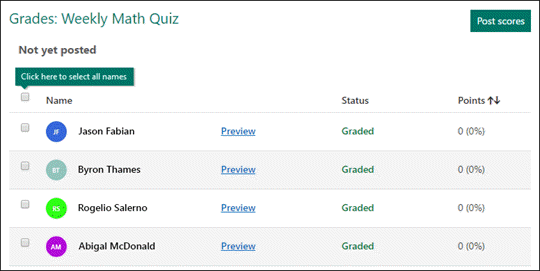
颁濒颈肠办听Post scores.
Once you post scores, you can go back to your quiz to review your results and feedback. Students 锘縞an view their scores and feedback by opening the quiz.
Tip: If a听student goes back into a quiz after submitting, they'll be able to see their previous responses. If you want them to retake the quiz without seeing their responses, you can create a copy听of the original quiz.听
You can easily view all of the response data for your quiz in Microsoft Excel. 颁濒颈肠办听Open in Excel听on the听搁别蝉辫辞苍蝉别蝉听tab.
In your Excel workbook, details of each question in your quiz are represented in columns and each response is shown in a row. The first five columns display respondent ID, start and completion times for each response, and the name and email address of each student. The subsequent columns display total points, quiz feedback, grade posted time, quiz questions, points for individual questions, and feedback for individual questions.

Notes: The respondant ID is exclusive for each student
听 听 听 听 听 听 Any changes you make to the quiz data in Excel won't modify the content of your quiz
听 听 听 听 听 听 Names and email addresses won't be displayed if you all your quiz to accept anonymous responses听
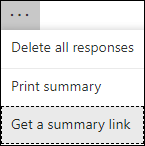
Select the听搁别蝉辫辞苍蝉别蝉听tab.
Select听More options听听.
Select听Get a summary link.
Select听Copy.
When you paste this link, anyone that has the link will be able to view a summary of responses for your quiz.
Notes:听
If you're collaborating on a quiz with specific teachers in your school, only you, as the quiz owner, can create a summary link for your quiz if one doesn鈥檛 yet exist. Co-authors can still copy and share your summary link, but can't create one, themselves. In other collaboration modes not set for specific people in your organization, co-authors can create new summary links.
Also note that if you share your quiz responses with anyone in your school, and then decide to share with only specific people in your school, any summary sharing link that already exists can still be accessed by anyone inside or outside of your school. You can delete an existing summary link to disable it, which will reduce access to the response data. You can do this by going to the听搁别蝉辫辞苍蝉别蝉听tab >听More options听听>听Get a summary link听>听Remove link听(trash can icon). Optional: You can then create a new summary link if you want to share it with a new audience, but this new summary link will still be accessible by anyone who gets a hold of it.
Note: The ability for you to collaborate on a quiz with specific people in your school is currently being developed and should be available soon.