This article has not yet been rated.
To turn in an assignment, select its assignment card. Depending on the status of your assignment, you may be turning your work in on time, late, or submitting revised work after it's been returned to you
1.聽Navigate to the聽General聽channel in the desired classroom, then select聽Assignments.聽You can also use your search bar to search for an assignment by keyword.
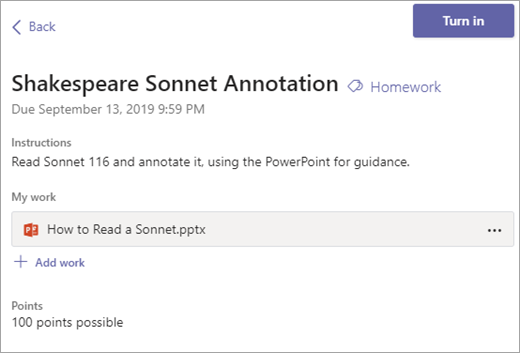
2.Your assignments will show as cards organized by the date they are due. Select any assignment card to open it and view the assignment鈥檚 details.聽
聽 聽 聽 聽Tip: Select the Expansion icon (diagonal double sided arrow) To work in full screen mode
3. If your teacher specified a document for you to turn in or you have other files to attach to this assignment, select聽+Add work聽and upload your file. It's possible to work聽on Office files right from this screen--no need to leave聽the app.
4.聽If you're turning in the assignment for the first time before the due date, select聽Turn in. You'll see a time and date stamp recording your turn-in.
Here are other options for turning in your work:
Undo turn in- Take back an assignment you've already turned in to make changes before due date
Turn in again -聽Turn in work after making revisions to an assignment you've already turned in.聽For example:聽Your teacher has returned it to you and asked for changes, or you've decided to revise your work before the due date. 聽
Turn in late -聽Turn in work after the due date for the assignment has passed. This means your teacher is accepting late turn-ins. You might be turning in聽the assignment for the first time or submitting a revision after it's been returned to you.
Not turned in -聽Your teacher is no longer accepting turn-ins for the assignment and you won't be able to turn in work.